

HTTP REQUEST TESTING GUIDE
How to Modify and Resend a Real HTTP Request in Chrome
Start with the request your application already sent, change the input you want to test, and send it again without rebuilding the request from scratch.
Your application sends POST /api/orders:
{
  "productId": "plan-pro",
  "quantity": 1,
  "coupon": "SAVE10"
}
The order succeeds. What if quantity becomes 999, or the coupon is invalid? Reuse this request without repeating the form or rebuilding its method, URL, headers, and body.
VIDEO WALKTHROUGH
Turn a captured HTTP request into a repeatable backend check
Watch a real request move from one-off resend to controlled variants, a saved Test, and a check you can run again after the backend changes.
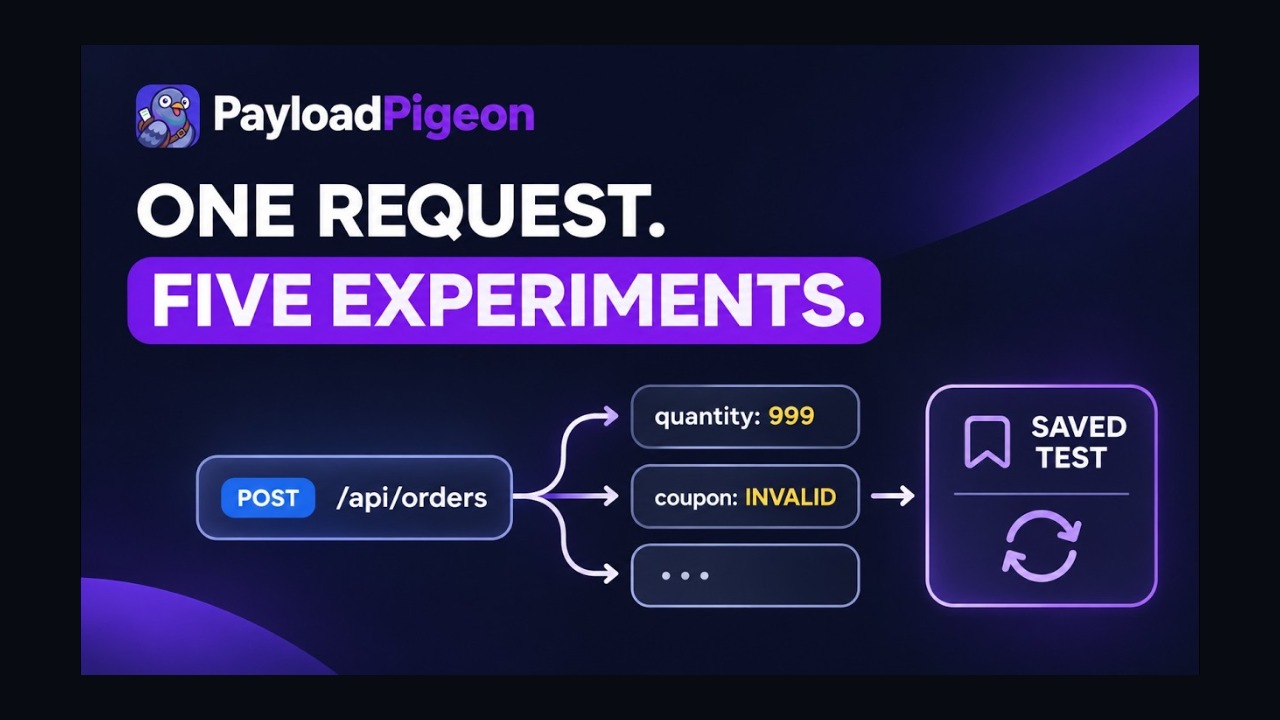
Modify and resend a real HTTP request in Chrome · PayloadPigeon
Selecting Play loads YouTube’s privacy-enhanced player. YouTube then receives your connection data. Privacy details.
Watch on YouTube ↗Chrome DevTools can already edit and resend
In Chrome DevTools, right-click a fetchable request in Network and choose Edit and resend as fetch. Edit the generated fetch() in the Console and press Enter. You can also copy as fetch, cURL, or PowerShell; see the Chrome Network reference.
If you only need to change a request once and send it again, Chrome DevTools may already be the shortest path.
When resend becomes a debugging workflow
One successful resend often suggests another experiment. Reuse the opening POST /api/orders baseline:
- Baseline:
quantity = 1,coupon = SAVE10→201 Created. - Experiment 1:
quantity = 999, original coupon → a possible validation response. - Experiment 2:
coupon = INVALID, original quantity → another backend response.
These are illustrative outcomes; inspect your server’s actual responses.
At this point, you are no longer doing a single resend. You have a baseline, several controlled variants, and potentially a useful check you may want to repeat after the backend changes.
Captured baseline
      ↓
Try variants
      ↓
Keep useful check
      ↓
Run again after fix
The workflow around the request now matters, not just the ability to resend it.
One resend? DevTools may be enough. Several experiments you want to keep and repeat? That is where PayloadPigeon starts to make sense.
| Task | Chrome DevTools | PayloadPigeon |
|---|---|---|
| One quick edit and resend | Excellent | Supported |
| Edit request inputs | Console / fetch | Structured editor |
| Try several variants | Manual workflow | Same Traffic workflow |
| Keep a useful check | Reuse code / Snippets | Save as Test |
| Repeat after a backend fix | Run reused code | Send saved Test |
| Keep a recorded test result | Manual | Recorded Result |
DevTools can also save reusable JavaScript as Snippets. The distinction is how you organize the check, not an inability to repeat a request.
Example: backend validation
Change only "quantity": 1 → "quantity": 999. An orders API might return:
422 Unprocessable Entity{
"error": "quantity_exceeds_limit"
}You are sending modified input to the real backend, not replacing its response. Inspect status, headers, and body; a surprising success can be as useful as an expected error.
Change one thing at a time. Keep productId and the coupon unchanged when testing quantity. Restore quantity before testing the coupon. Body, query parameters, headers, URLs, identifiers, and pagination values can each test a different hypothesis—for example, limit=20 → limit=1000.
How this works in PayloadPigeon
In the HTTP Playground, paste the opening JSON into REQUEST. Start Capture, then select Send request. This creates a real POST /playground/api/echo?behavior=normal. Select it in Traffic and open Request.
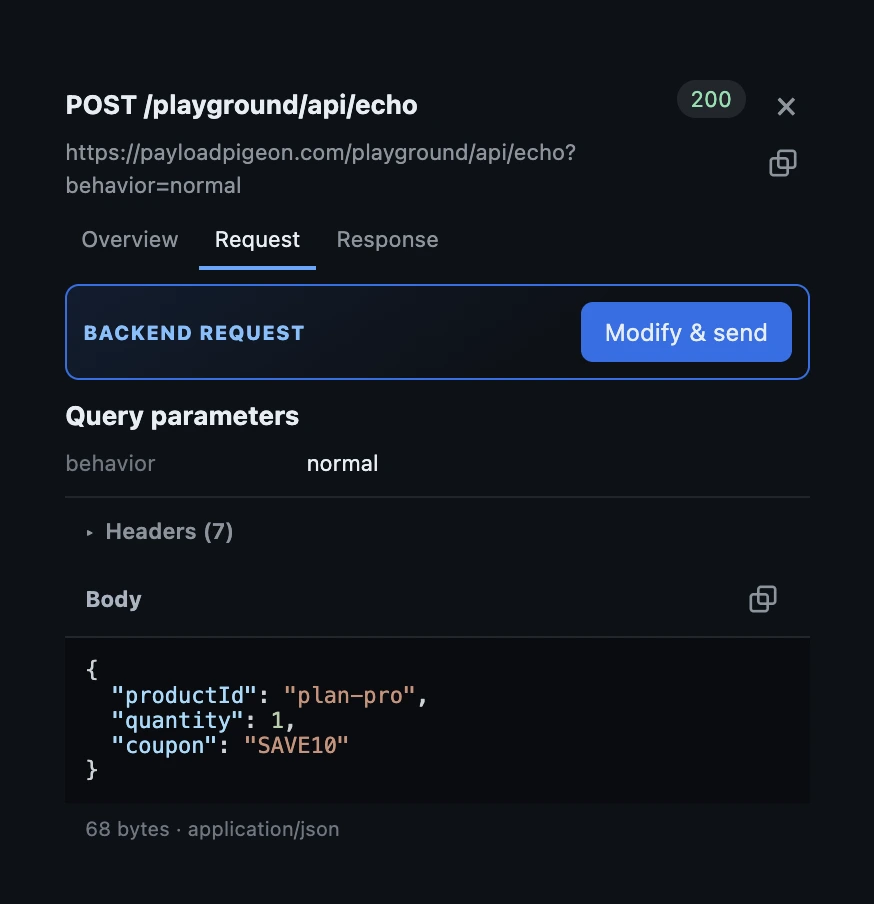
Choose Modify & send. Change quantity to 999 in Body, leaving other inputs unchanged.
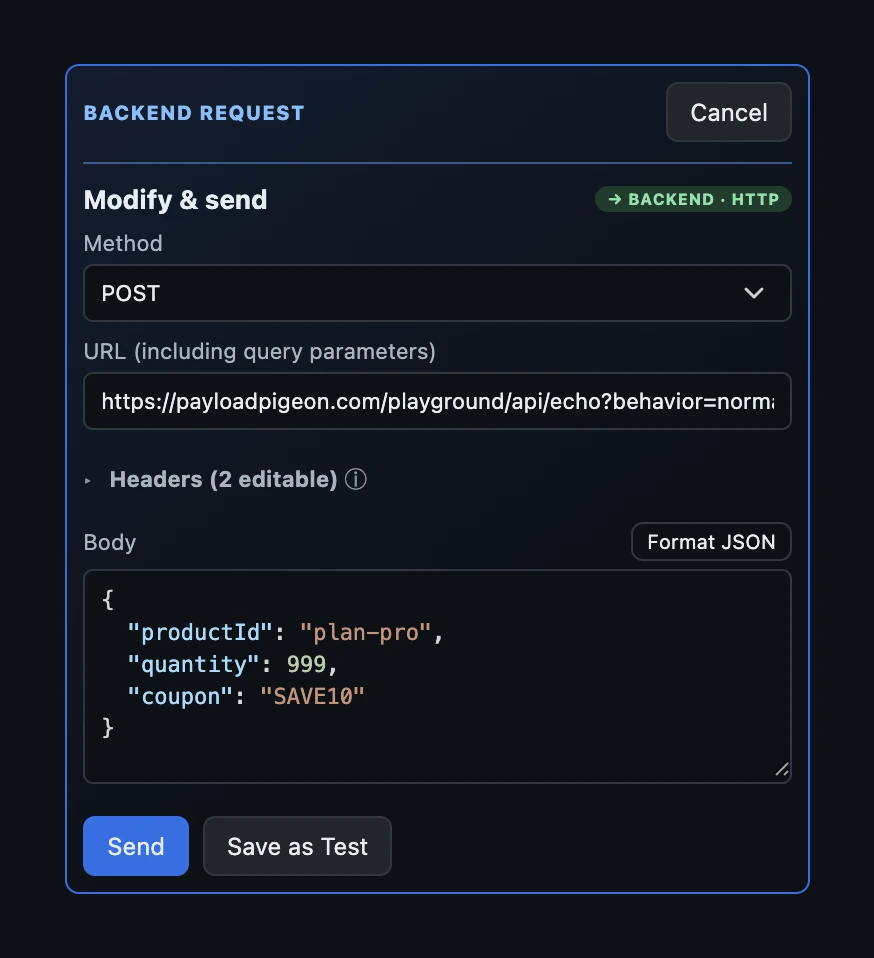
Select Send, allow destination access if Chrome requests it, and review the POST confirmation. Open the resulting MODIFIED SEND entry and its Response.
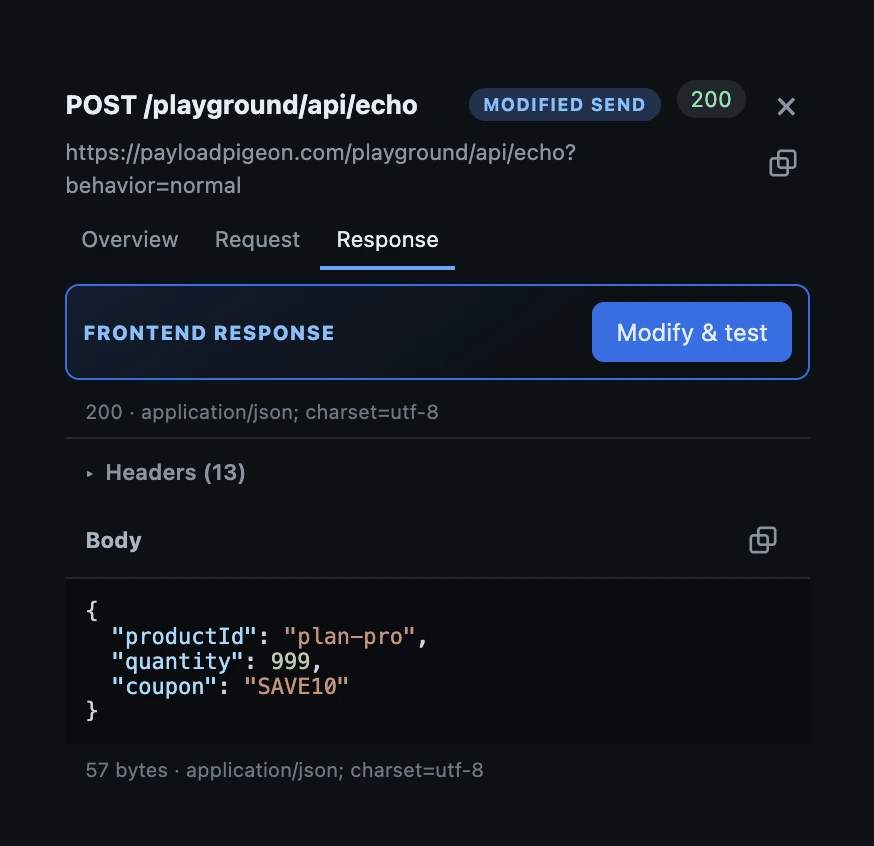
Return to the original request. Open Modify & send again; keep quantity 1 and change the coupon to "INVALID". Send and inspect this response too. The original and both experiments remain in Traffic. See the View Activity guide for action filtering.
Save the quantity variant as Reject excessive order quantity with Save as Test. Specify expected behavior; rerun it after backend changes.
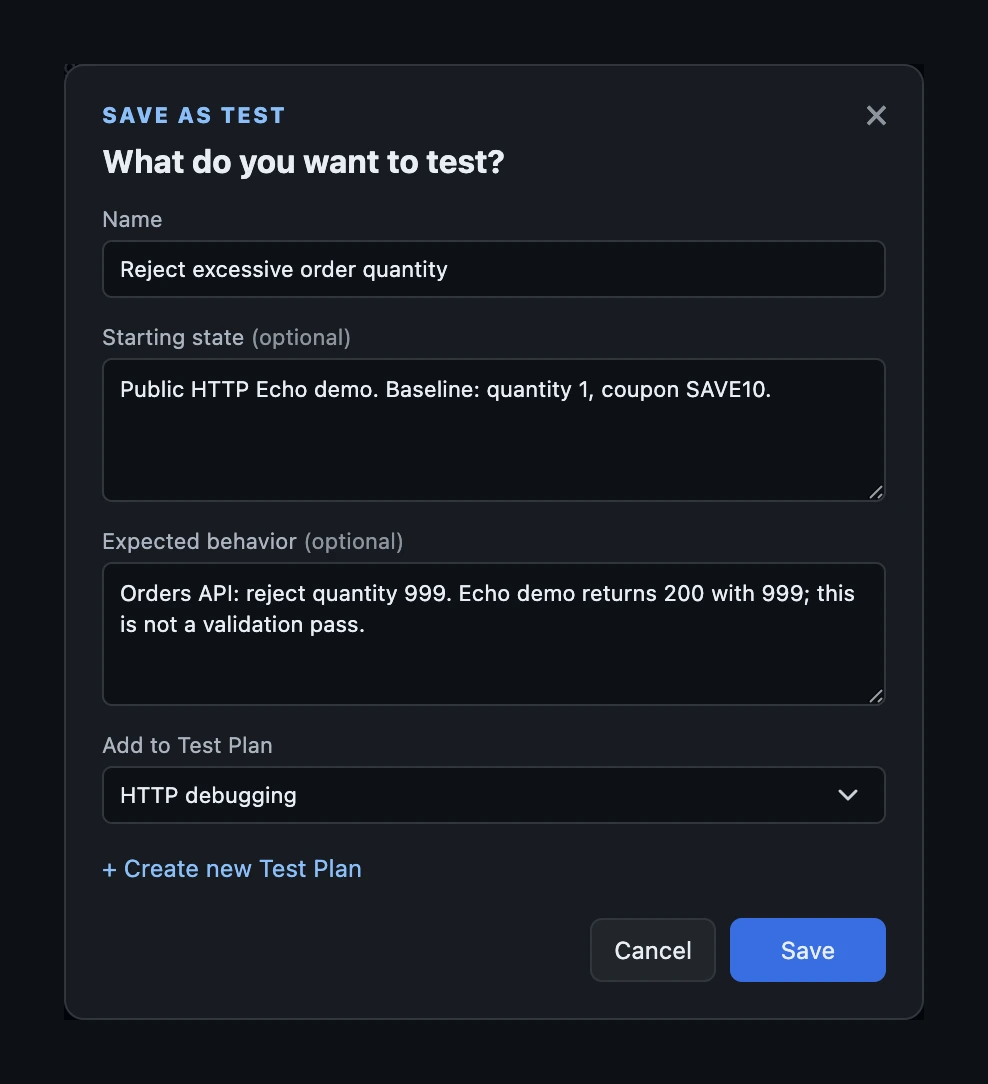
Use Send to rerun the saved backend Test. The manual regression guide covers Test Plans and recorded Results.
Demo note: Echo returns submitted JSON with
200 OK; it does not implement order validation or create orders. Both variants and the saved quantity Test demonstrate sending and reuse, not a validation pass. The orders API and422are illustrative.
The backend response stays in Traffic. It is not automatically delivered to the application. Sessions can expire, and browser-managed headers and credential restrictions still apply when reusing requests.
Request testing vs response testing
Request testing: real request → change input → send to backend → inspect response. What does the backend do if the client sends different data?
Response testing: real backend response → change response → test frontend. What does the UI do if the backend returns different data? Follow the frontend edge-cases guide for that workflow.
Safety: state-changing requests
A captured request is real traffic. Sending it again can perform the real operation again.
POST, PATCH, DELETE, payments, and order actions can duplicate objects, send notifications, charge money, or modify data. Prefer local, development, staging, or prepared test accounts. Check destination and credentials; do not resend production mutations merely because the control is available.
Choose the workflow you need
Use DevTools when
You need one quick edit and resend.
Use an API client/framework when
You need large request collections, browser-independent API work, team sharing, or automated API testing.
PayloadPigeon makes sense when
You are debugging a running application: start from captured traffic, try nearby variants, inspect responses, keep a useful experiment, and repeat it as a Test.
Keep the checks that matter
A captured request can start as a one-off debugging experiment. If the check proves useful, keep it and run it again after the backend changes.
Start with the request your app already sent. Change what matters. Send it again. Keep the checks that matter.
Try the HTTP Playground, or Add to Chrome to test your application's requests.