

PayloadPigeon — Chrome extension for HTTP & WebSocket testing
Test your frontend and backend. Don’t build requests from scratch.
Capture the HTTP and WebSocket traffic your app already generates, see what happened after each user action, change what you need, and save useful checks for later.
PayloadPigeon is available now in the Chrome Web Store. All features are free during Early Access; a paid plan is not available yet.
See the complete workflow
Capture real traffic, change a response, save the scenario as a Test, repeat it, test outgoing requests and WebSocket messages, and inspect mixed HTTP + WebSocket activity.
Getting Started tutorial: capture real traffic, change a response, save and repeat a Test, test outgoing requests and WebSocket messages, and inspect mixed HTTP and WebSocket activity. Use the player controls to play, pause, adjust volume or seek.
Real traffic to a reusable check — three steps.
Start with an action in your app and the request or message it already sends.
-
01
See what happened
after the actionPerform the action you want to test. Automatic Actions help you focus on the meaningful HTTP and WebSocket activity observed afterward, so you can focus on the relevant behavior.
After: Submit · 6 -
02
Change what
the app seesFor incoming responses or messages, use Modify & test → Ready, then repeat the app action. For outgoing requests or messages, use Modify & send → Send and inspect the real response.
Modify & send / Modify & test -
03
Save the
useful checkKeep useful scenarios as Tests with Starting state and Expected behavior. Repeat them after the next fix or change, then record the manual Result.
Save as Test Test Plans
One action.
The whole network story.
One click or submit can trigger several HTTP requests and WebSocket messages.
PayloadPigeon groups the meaningful traffic observed after that action, so you can follow the sequence without jumping between separate logs.
Open View Activity to see HTTP and WebSocket events together on one relative timeline, including failures and modifications.
Activity is a temporary view of captured traffic — not a separate saved object and not a claim of perfect causality.
Explore Actions and Activity →ILLUSTRATIVE ACTIVITY
After: Submit profile
- HTTP · POST
/api/profile/prepare200 - App → Server
profile.start - Server → App
profile.started - HTTP · GET
/api/validation503 · Failed - Server → App
profile.completedModified - HTTP · GET
/api/result200
Application traffic first
Successful assets, analytics and other supporting traffic stay out of the way until you need them. Errors remain visible.
Search and visibility controls bring supporting traffic back without losing chronology. How focused Traffic works →
Changed the code?
Repeat your saved checks.
Save the network scenario together with what must be true before the check and what the tester should expect to see. Organize reusable Tests into Test Plans, then repeat them after changes.
Return to a check while fixing a bug or building the next change — without setting it up from scratch.
Starting state and Expected behavior keep the purpose of each Test clear. Use Send or Ready to run it; record a Result after checking the app.
You run each Test yourself. Backend Tests send when you choose Send; frontend Tests use Ready and wait for matching fresh traffic according to their saved response or message behavior. Test Plans are not an automatic runner.
Checkout
POST /api/ordersPOST https://checkout.example.test/api/payments*order.updated · wss://checkout.example.test/ws*GET https://checkout.example.test/api/cart*Save the Test — and keep its results with it.
A Test is the reusable definition. A Result is an immutable record of one completed manual check: Works correctly or Found a problem, notes, an applied scenario snapshot and any evidence you chose to save.
Selected fields or the available full bodySave selected JSON fields or the available request, response, or message body after recognized sensitive values are removed or replaced.
A report for an issue or teammateExport Results as Markdown and choose whether to include already saved Result evidence.
You choose what to save for each run. If the selected data exceeds a limit, the extension reports the problem instead of silently trimming it. The outcome remains your manual assessment.
Cart service unavailable
FOUND A PROBLEMCheckout
Error state remains visible after a successful retry
Applied changes
Response status set to HTTP 503. Response body unchanged.
RESPONSE
Technical context
GET https://checkout.example.test/api/cart*
Check first. Save what you need to repeat. One-off actions remain visible in Traffic. After running a saved Test, record whether it worked or exposed a problem; that manual outcome stays in Results.
Test your tab.
Protect your saved data.
You start and stop Capture. Core testing runs locally in your browser. Saved Tests, Test Plans, and Results are encrypted locally with your password. No PayloadPigeon account or cloud backend is required for the saved library.
Backend Send contacts a destination you select, Playground uses the demo service, and optional usage analytics sends only aggregate feature-use counts after opt-in, never captured traffic.
Data & Security → · Privacy Policy →
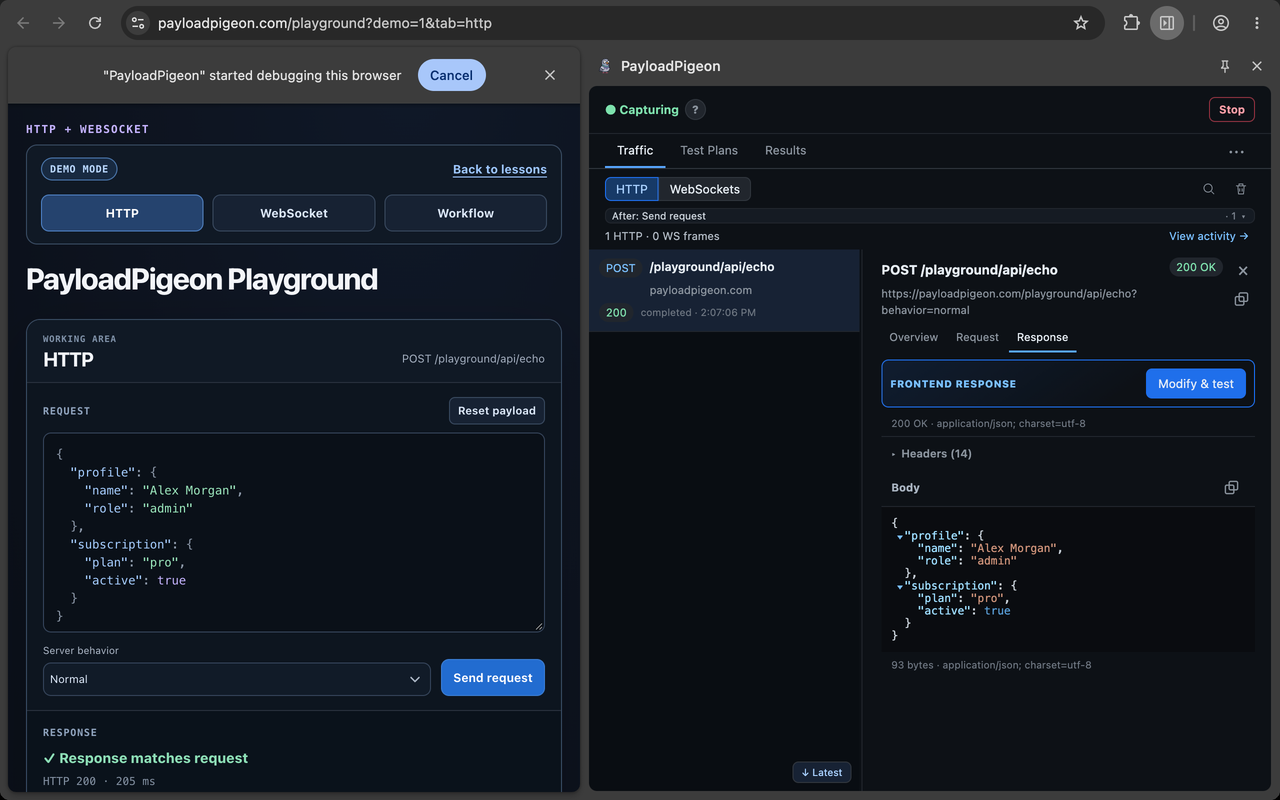
Playground sends training requests to our demo service; use test data only. Open Playground →
You control CaptureYou choose the tab and start Capture. Captured traffic can include URLs, headers, bodies, and messages with sensitive data.
The password protects your saved libraryOne-off checks work before setup. You set the password when you first save durable data and unlock again after a full Chrome restart or an explicit Lock.
You choose the sharing formatJSON and Markdown are readable files. A Test Plan can also be shared as a protected package with a separate file password.
Practise with safe sample traffic
Send real HTTP requests or WebSocket messages. See how PayloadPigeon groups the activity after the action, modify it, and watch the training app react.
Try HTTP, WebSocket or a multi-step Workflow. Use sample data only.
Common questions
What to know before your first check with PayloadPigeon.
What are Actions?
PayloadPigeon watches supported trusted user actions such as clicks, submits and Enter activation, then groups meaningful HTTP/WebSocket activity observed after them. Empty actions do not create filters. Grouping uses timing, behavior and protocol relationships: “After” describes an association, not proof that an action caused every event.
What is View Activity?
A temporary timeline of the HTTP and WebSocket events associated with one selected captured action. Open an event in the existing Inspector. Activity is not saved separately; save a Test to repeat a check and a Result to keep its manual outcome.
Does Stop remove captured traffic?
No. Stop ends collection, but keeps the current Traffic and Activity available for inspection. Use Clear traffic when you want to delete the temporary captured history. This destructive action asks for confirmation. Saved Tests, Test Plans and Results are not affected by Clear traffic. Stop vs Clear traffic →
Do I need to create a Test Plan first?
No. Start Capture and begin with Traffic. Use Modify & send to edit and send a request or message to the server, or Modify & test to prepare a changed response or message for the app. Save the case as a Test when you want to repeat it without rebuilding the setup.
Why does Chrome show a debugging notice?
PayloadPigeon uses Chrome’s debugger API to work at the browser network layer for supported Capture and modification. This lets it preserve fresh-response behavior and use browser network events to verify supported traffic more directly. You choose the tab and start Capture yourself; use Stop when you want to end it. Learn more in Data & Security.
Why do I need a password, and when do I enter it?
Saved Tests and Results may contain sensitive data, so your library is encrypted with a local password. You set it when you save durable data for the first time. You need to enter it again after a full Chrome restart, an extension reload or update, disabling and re-enabling the extension, or a manual Lock — not before every test. Learn more about data protection.
Can I share Tests and Results with a teammate?
Yes. Export a Test Plan as regular JSON or as a package protected with a separate file password. Your teammate imports it into their own local library, so they do not need your PayloadPigeon password. Result history and saved evidence can be included using the available export options. Results can also be shared as a readable Markdown report. This is file-based sharing, not cloud sync.
What if I forget my password?
Use the recovery key you received during setup to unlock the existing library and set a new password. If the library is locked and both the password and recovery key are lost, the developer cannot restore access. The recovery key is not a backup and cannot restore deleted data.
What are the current limits?
This version does not support Incognito, cloud sync, or automatic execution of an entire Test Plan. Backend HTTP Send does not automatically follow redirects. WebSocket message modification is available only on supported connections. See the full list.
Stop rebuilding the same manual check.
Start from real app traffic, keep the useful scenario, and repeat it after the fix.
Install from the Chrome Web Store. Free Early Access; no paid plan.