

WEBSOCKET TESTING GUIDE
WebSocket Testing in the Browser: How to Test the Connection Your App Already Uses
Test WebSocket messages in your browser, simulate errors and delays, and keep a reusable regression suite with manually recorded test results.
You are working on a feature that receives live updates over WebSocket. A user sends a request, and the server gradually reports its progress:
pending → processing → completed
The happy path works. But you need to test more than the successful scenario.
What happens if the server reports failed? What does the user see if an update arrives late—or never reaches the application? What happens when a message contains an unexpected value?
And when you change the same feature a month later, will you be able to repeat those checks?
This is where WebSocket testing becomes more useful than simply checking that a connection opened and the application's requests or responses were sent or received. You need to see what the application does with those messages—and keep the scenarios worth checking again.
A standalone WebSocket client or the application's own connection?
A standalone WebSocket client usually starts with a straightforward workflow: enter a ws:// or wss:// URL, connect, send a message, and inspect what comes back.
That is useful when you want to test an endpoint independently.
But when I am developing a web application, the endpoint is often only part of the question. I want to check the feature around it: the page state, the loading indicator, the error message, and the next action available to the user.
The application is already open in the browser.
The application is authenticated.
The right environment is open.
The network path is already working.
Any VPN or tunnel the application needs is already in place. The page has made its initial requests, established a connection, and subscribed to the relevant updates.
Recreating that setup in a separate WebSocket client can be useful, but it is not always the check I need. Sometimes I want to continue from the real WebSocket traffic the application is already generating, with the page and the testing controls side by side.
That is the workflow I built PayloadPigeon around: start from the application's traffic, test the behavior, and save useful checks for later.
For supported message changes, Capture needs to start before the application creates the connection. An already-open socket may need to be reconnected through the application; the extension does not create a new login session or set up a tunnel for you.
Inspect the application's WebSocket traffic first
Before changing anything, start with the traffic the application is already generating.
In PayloadPigeon, start Capture for the selected browser tab, let the application establish its WebSocket connection, and open Traffic → WebSockets.
There you can inspect the WebSocket messages associated with the feature you are testing:
- which messages are outgoing;
- which messages are incoming;
- what the payload contains;
- which fields identify the request, operation, or entity;
- how the traffic changes when the user repeats an action.
This matters because WebSocket testing usually starts with understanding what the application is actually doing—not with inventing a new message from scratch.
For some bugs, observation alone may already reveal the problem. You may find an unexpected field, a missing update, or a message associated with the wrong state.
For others, inspecting the WebSocket traffic leads to the more interesting question:
What would this application do if the message were different?
That is where PayloadPigeon moves from inspection to testing.
Once a supported connection reaches Testing available, you can prepare changes to an incoming message, send a modified outgoing message, or save a useful scenario as a reusable Test.
If you only need to inspect WebSocket frames, Chrome DevTools may already be enough. PayloadPigeon becomes useful when you want to go beyond observation: modify supported messages, test the application's reaction, save the scenario, and repeat it later.
Test incoming WebSocket messages with a different payload
Suppose the application receives a status update like this:
{
  "type": "request.status",
  "requestId": "demo-request-42",
  "status": "processing"
}
Instead of checking processing again, you want to see how the frontend handles:
{
  "type": "request.status",
  "requestId": "demo-request-42",
  "status": "failed"
}
These are illustrative application messages, not the Playground's message format. Use the fields, identifiers, and status values defined by your own application.
You could change the backend, add a test endpoint, prepare a mock server, or write an automated test. Depending on the task, those may be the right choices.
During development, though, I often need a more immediate answer: what will this frontend do if it receives this message now?
Change, replace, drop, or delay a message
In PayloadPigeon, I start Capture for the application tab, let the application establish a supported connection, and wait until it shows Testing available. Then I find the incoming message I want to test.
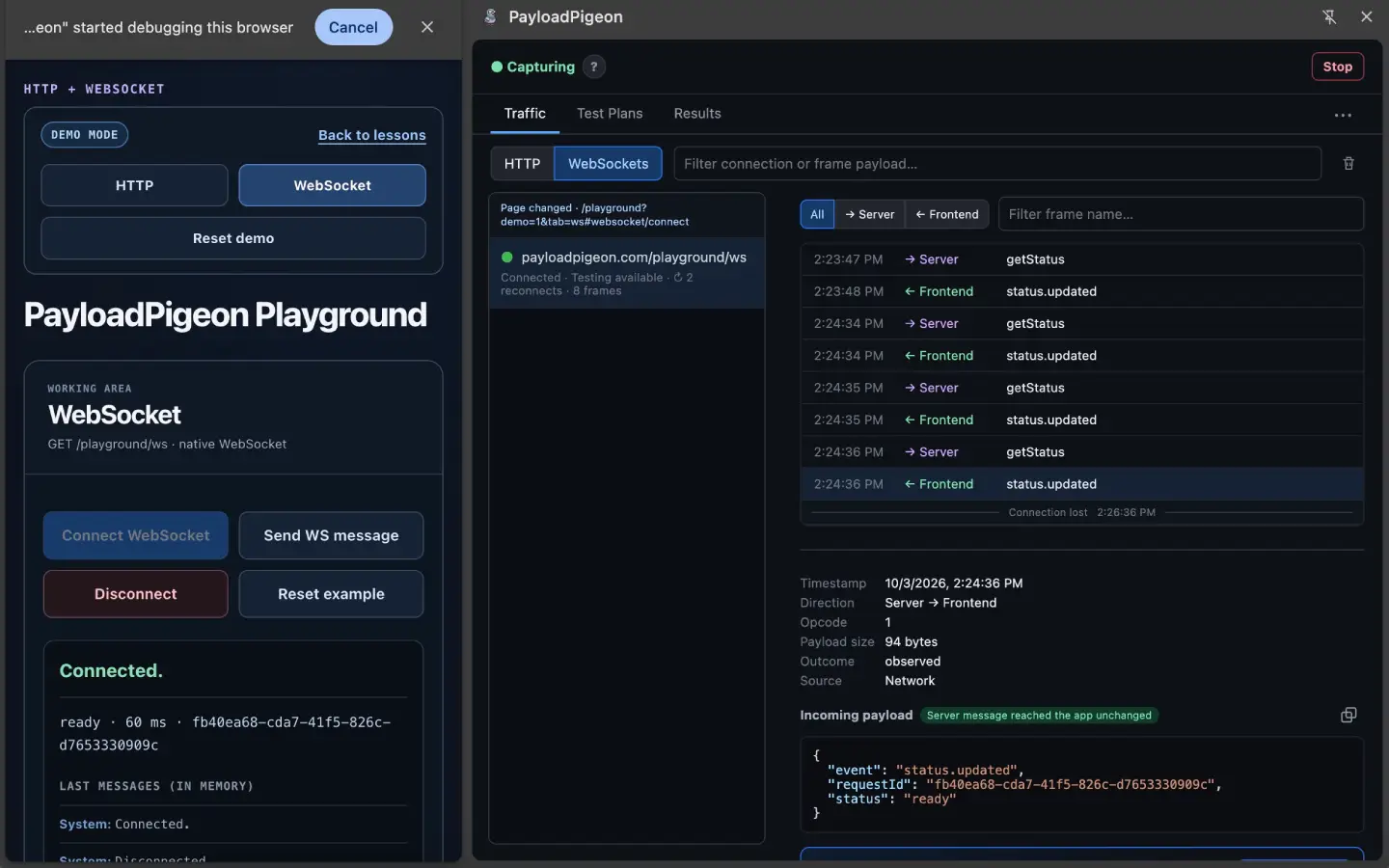
For a supported incoming message, I can:
- change selected fields in the next matching fresh message;
- replace the next matching message with a saved version;
- prevent the matching message from reaching the application;
- delay delivery of the matching message to the application.
I prepare the scenario through Modify & test, select Ready, and repeat the action in the application that produces the matching message.
Ready waits for the next matching incoming message. It does not click through the page or make the server generate an event.
For the failure example, I change the status field and leave unrelated fields alone. Then I check the actual page. Does the loading indicator disappear? Does the error message explain what happened? Is the interface still usable? Did anything unrelated change?
The WebSocket payload tells me what was delivered. The application tells me whether the behavior is correct.
Check what happens when a message arrives late
A delayed update creates a different scenario from a failed update.
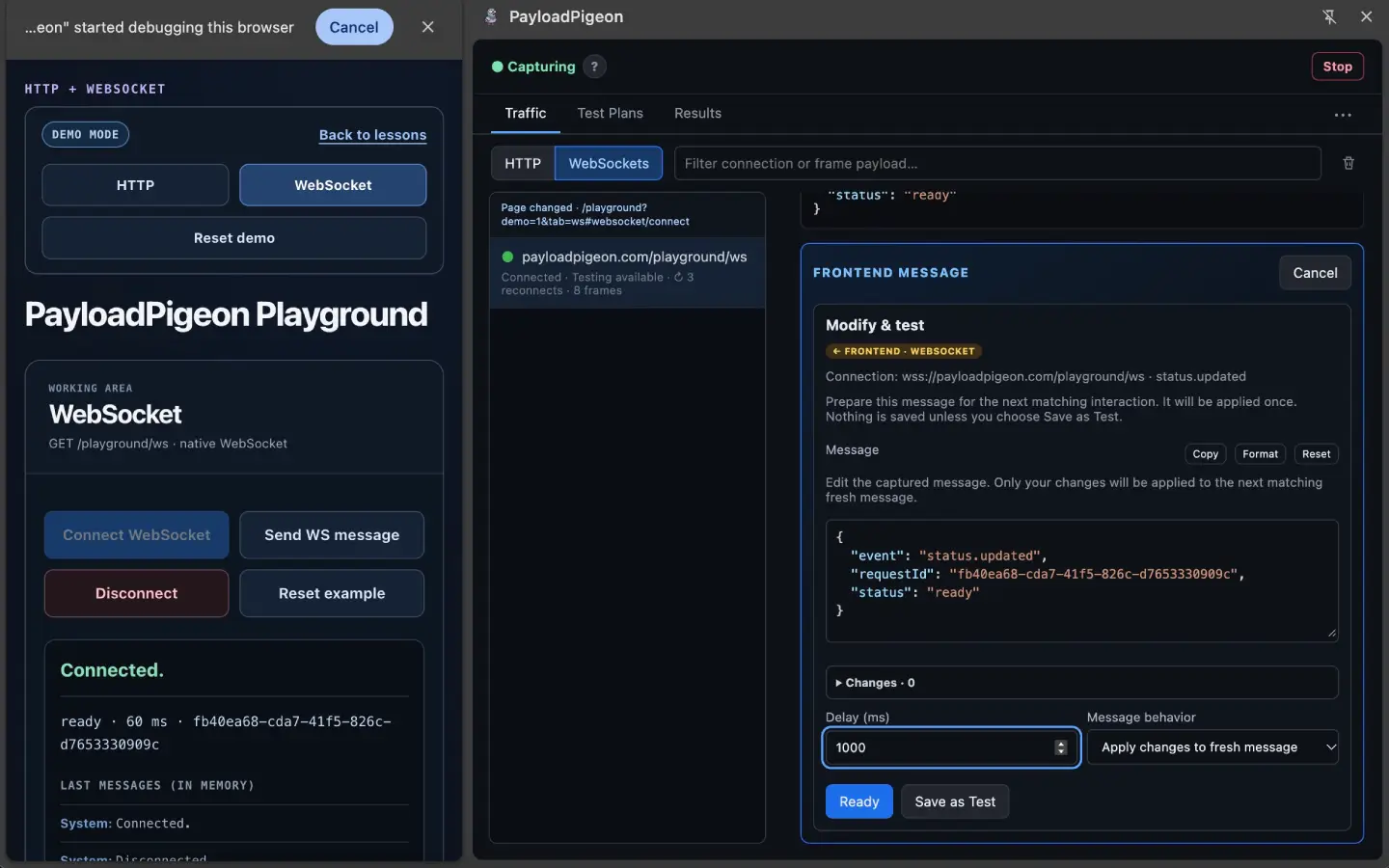
While the application is waiting, does it show a sensible loading state? Can the user accidentally repeat the action? If the update finally arrives, does the page handle it correctly?
I would save this separately from a dropped-message check. One checks what happens when a message is delivered later; the other checks what happens when the matching message is not delivered to the application.
Neither is the same as closing the socket or simulating every effect of a slow or disconnected network. Delaying delivery to the page also does not slow down or undo work the server has already performed.
That distinction keeps WebSocket testing focused on the behavior I actually intend to check.
Send outgoing WebSocket messages to check backend behavior
Sometimes the question is on the other side of the connection.
What happens if the application sends a different parameter, a boundary value, or a valid payload that is difficult to produce through the current UI?
For a supported outgoing message, PayloadPigeon provides Modify & send. I inspect the captured payload, change what the scenario requires, and use Send through the corresponding live connection.
Then I inspect the relevant server messages and the application's behavior. A message being sent is not a verdict on whether the feature worked correctly.
This is a real send, not a simulation of a server-side action. If the message starts a process or changes data, sending it again can repeat that action. Use an authorized development or staging environment and safe test data.
The harder part comes after the check
Suppose I checked a failed update, delayed a message, tried an unexpected payload, and fixed a problem. I confirmed that the feature worked and moved on.
Two months later, I need to change that feature again.
Now the question is not how to inspect WebSocket traffic. It is:
What exactly did I check last time?
Some scenarios may already be covered by unit, integration, or end-to-end tests. Others existed only in a temporary inspection session, a JSON file, a ticket comment, or my memory.
I do not want every useful manual check to disappear just because it has not become an automated test yet.
Save WebSocket scenarios as reusable Tests
When a check is worth repeating, I use Save as Test and give it a name that explains the behavior I want to verify—for example, Request status — failed update.
If this is the first saved item, I first complete the local saved-data protection setup. If the library is locked, I unlock it. The PayloadPigeon usage guide covers that setup.
A saved Test preserves the scenario for a future check. It is not a recording of every click, the complete login flow, or all the application state around it.
That is still valuable. I have kept the message behavior I wanted to test instead of leaving it in a temporary debugging session.
Build a regression suite around one feature
I group related Tests into a Test Plan for the functionality they cover. For this example, a Plan called Request status updates might include:
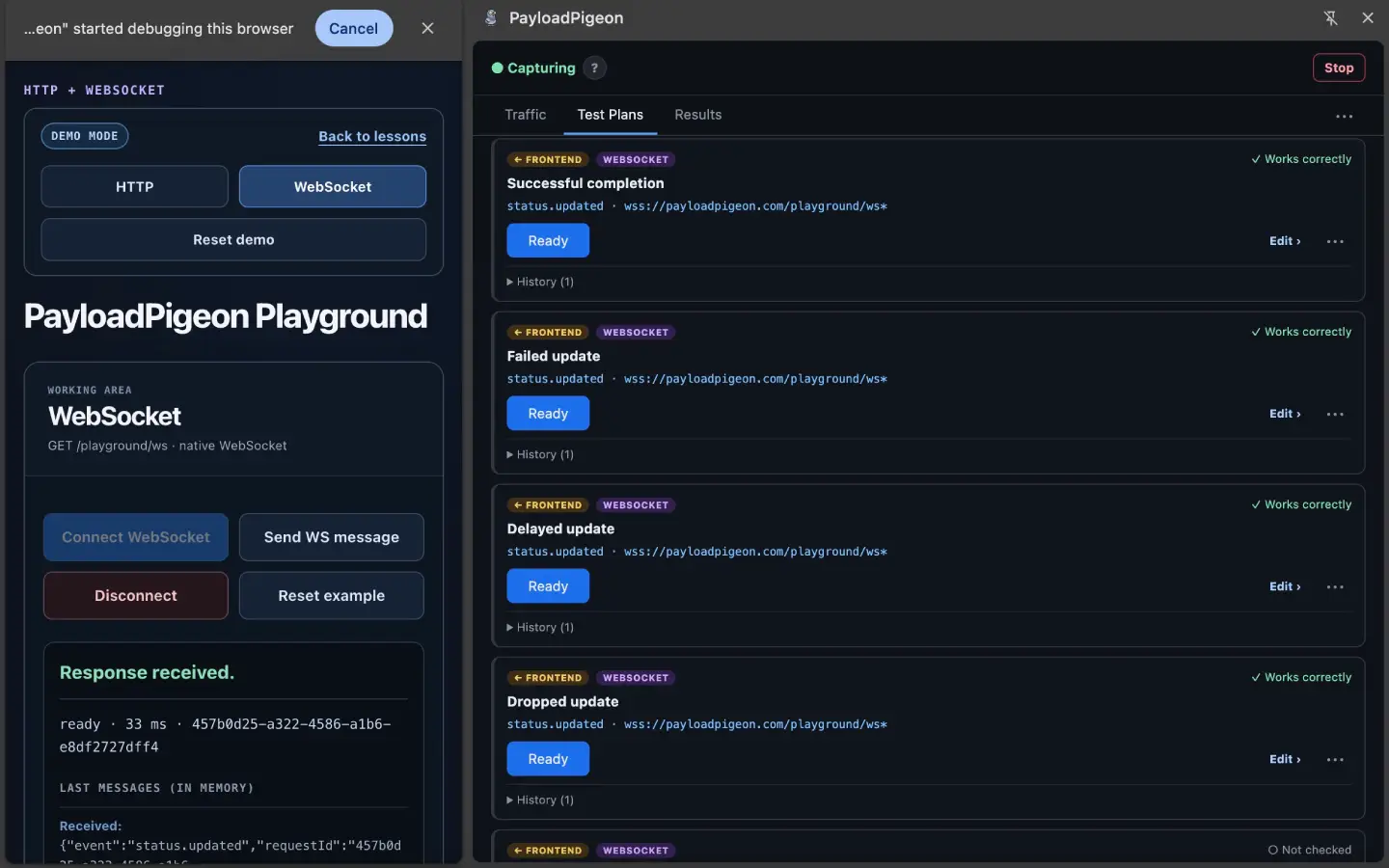
| Saved Test | What I check in the application |
|---|---|
| Successful completion | The page leaves the loading state and shows the expected result. |
| Failed status update | The application displays the failure and the appropriate recovery action. |
| Delayed status update | The waiting state remains understandable, and the delayed update is handled correctly. |
| Dropped status update | The feature handles the missing update according to its requirements. |
| Unexpected payload value | The page behaves as specified when a relevant field has an unexpected value. |
| Outgoing status request | The supported message produces the expected server and application behavior. |
These are examples of manual checks, not built-in automatic assertions. The expected behavior comes from the feature's requirements.
The Test Plan now acts as a small WebSocket regression suite: a reusable collection of checks for this feature.
It does not execute every Test automatically. I still choose each Test, perform the necessary page actions, and assess the outcome. The difference is that the regression suite is there when I return to the feature.
Complete a manual test run after the next change
When the status-handling code changes, I open the application and prepare the relevant state again. I log in normally, start Capture, let the application create a supported connection, and open the saved Test Plan.
A manual test run then follows the checks I already decided were important.
For an outgoing Test, I use Send. For an incoming Test, I use Ready and trigger the matching interaction in the application.
After each saved-Test check, I record Works correctly or Found a problem. For a problem, I describe what I expected and what I actually saw.
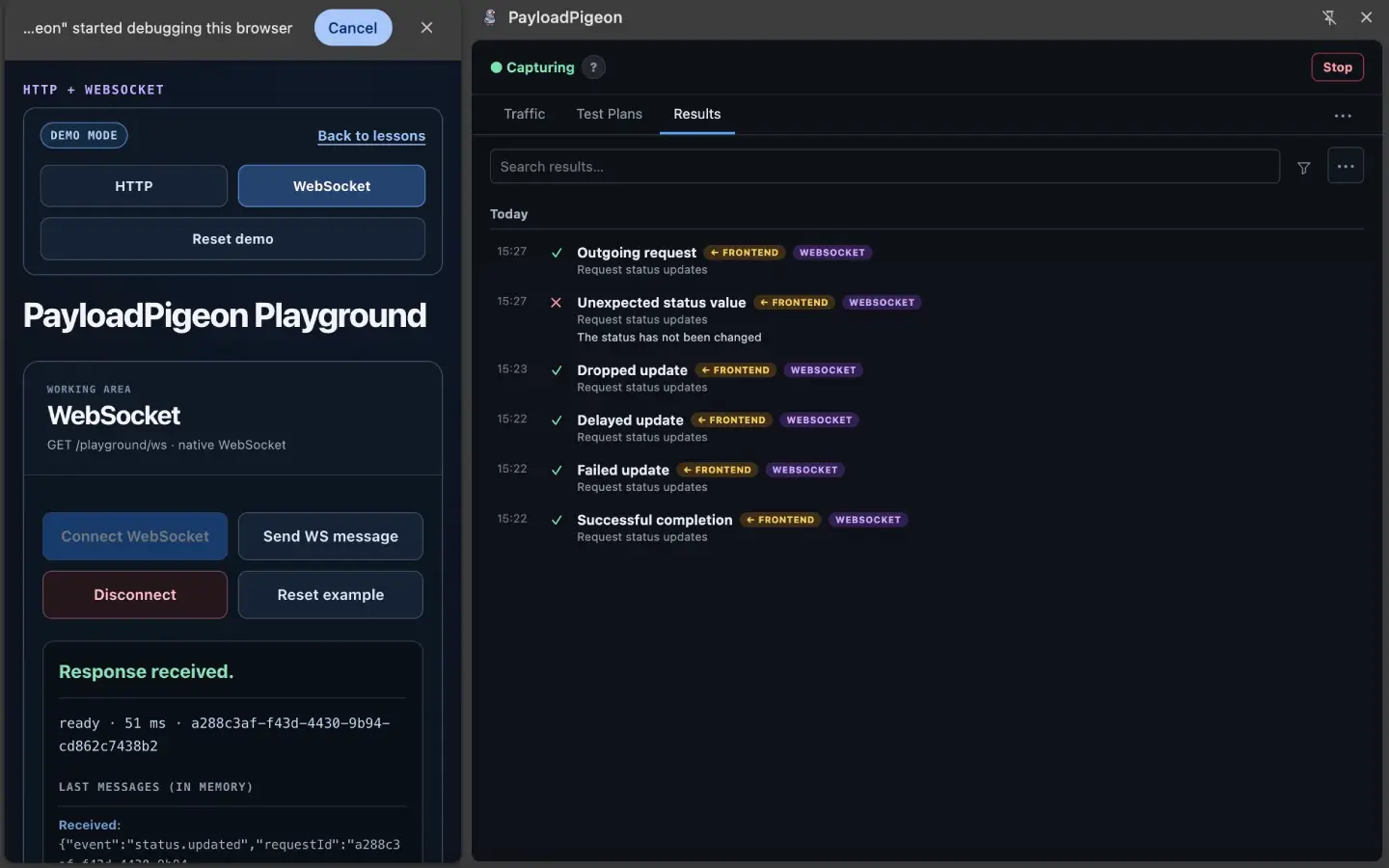
For example:
Expected the progress indicator to disappear after the failed status update. The error message appeared, but the progress indicator stayed visible.
That note gives me something concrete to check after a fix. “Failed” on its own would not.
A Result records my assessment. PayloadPigeon does not decide automatically whether the interface looks right or whether the feature meets its requirements.
Temporary actions in Traffic are useful for exploration, but they do not become historical Results retroactively. To keep the outcome in saved-Test history, I execute the saved Test and record the verdict.
Use previous Results without treating old scenarios as permanent truth
Before a change, the same checks can help establish a baseline. After the change, another manual test run shows what I observed against the updated application.
I still review the Test's message matching, identifiers, and expected behavior. A request ID from an old debugging session may no longer identify the current operation. The application's message contract may also have changed intentionally.
A useful regression suite is maintained, not simply accumulated. Previous Results help me revisit what I checked; they do not remove the need to understand the current feature.
Where manual WebSocket testing fits alongside automation
If a scenario is critical, stable, and checked repeatedly, it may be a good candidate for automation.
But development also involves questions that start as experiments: what happens with null here? How does the page look while the message is delayed? Does the failure state make sense? Can I still reproduce the bug after the fix?
Some of those checks will become automated tests. Some will remain manual. Either way, a useful scenario does not need to be forgotten after its first run.
The same applies when AI helps produce or change the implementation. Code generation does not answer my question about the feature in front of me: does it behave the way I expected?
For these checks, manual WebSocket testing gives me a way to investigate the running application and keep the scenarios I want to revisit. It complements automated testing rather than replacing it.
When a WebSocket connection is observe-only
Seeing a connection in Traffic and being able to modify it are different things.
The normal supported flow is:
Start Capture → the application creates its WebSocket connection → send a suitable text/JSON message if needed for identification → wait for Testing available.
A connection created before instrumentation may remain observe-only. Reconnecting through the application after starting Capture can help when it creates a newly supported connection.
Some worker-created, binary-only, unsupported, or ambiguously identified connections can also remain observe-only. Application reinitialization or a reload may help if the page cached the original WebSocket constructor before Capture, but a reload is not a universal fix.
This does not mean the page must always be reloaded. The normal supported connection flow, including Stop → Start Capture → reconnect, does not require one. See the WebSocket support boundaries for more detail.
This guide concerns supported application-level text/JSON behavior. PayloadPigeon is not a replacement for protocol-compliance, load, or security testing.
Keep the checks, not just the traffic
What I want from WebSocket testing is not simply confirmation that a connection opened or a message arrived.
I want to know which messages matter to a feature, how the application handles success and failure, what happens when an update arrives late or is dropped, and which scenarios I should repeat after the next change.
Then, when I return to the feature, I have somewhere to start: saved Tests, a Test Plan that groups them, and Results from previous manual test runs.
You can try the controls with synthetic data in the PayloadPigeon Playground. The usage guide explains installation and the saved-Test workflow.
The next time the feature changes, the useful checks do not have to start from memory.